
Showing posts with label Digital Storage. Show all posts

14 September 2011

Creating an Archival Finding Aid with your Digital Cataloging Software


I am struck by the similarities between digital asset management (DAM) and archiving. Can Lightroom be used to create an Archival Description at the box and folder level? Collections are used in Lightroom to bring images together for printing or other publication.  The collections depicted below show how Lightroom can be used to create an archival catalog.  The examples include one used by the Practical Archivist, JT Johnson Papers, and also a catalog of items from Opening Day 1.
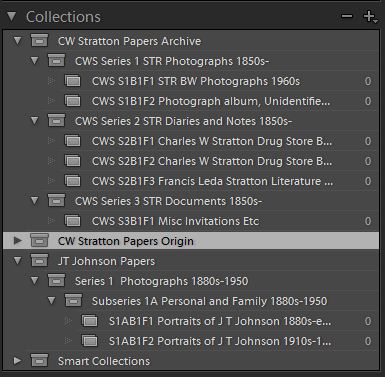
S1B1F1 is Series 1, Box 1, Folder 1.  Electronic images of any items that are physically stored in Series 1 photographs, photo box 1, folder 1, will be included in the collection, "CWS S1B1F1 STR BW Photographs 1960s" mirroring the structure of my physical archive.
Click to view larger size
Dates from ca 1900

The nice thing about using a digital catalog is that I needn't scan all the items in each box.  "CWS S2B1F3 Francis Leda Stratton Literature Notebook," may only contain an image of the book and scanned images of any items inserted into the book.  Or, I may decide that I can't resist scanning the page on monsters for Harry Potter fans!

Digital collections aren't like the real world where you can't have the same item in two locations at once (Schrodinger's cat notwithstanding).  I've created a separate collection in Lightroom to reflect where the item was originally found. Scanned digital images of the items found in attic box one will be put into CWS STR AB1 Scans (AB1 for attic box 1).  The photo log of the box made on Opening Day 1 will go into the collection, "CWS STR_AB1 Cataloging Photos."


The item-level descriptions used for archiving can be managed using keyword tags or other metadata - more on that later.  In keeping with the Practical Archivist's advice, most of the item-level detail can wait.  Describing the archives to the box and folder level gives you a great start!  And, it may get the items to safe storage a bit more quickly.  :)

For instructions on setting up catalogs in Lightroom, see their help information or consult a guide to using the software.  There are several excellent guides including Lightroom 3: Streamlining Your Digital Photography Process, Adobe Photoshop Lightroom 3 - The Missing FAQ, The Adobe Photoshop Lightroom 3 Book for Digital Photographers, The Adobe Photoshop Lightroom 3 Book: The Complete Guide for Photographers.

This same general idea could be replicated using most digital cataloging software.  So how will this actually work?  For that I'll need to put the theory to the test!  Suggestions welcome!

09 September 2011

Cataloging and Editing Digital Images

When I began this project, I was looking for the perfect all-in-one software to manage and edit my photo collections.  It doesn't exist - yet!  But, there are some very good alternatives that come close to achieving my ultimate goals.

Adobe Lightroom 3 will be the primary work horse of my digital cataloging and editing software.  The DAM Book, Digital Asset Management for Photographers recommends several different software packages for digital asset management (DAM).  For my more modest needs, keeping it simple will not only simplify the process but keep software expenses to a minimum.

Photo Cataloging
Lightroom is an image database that keeps thumbnails of your photos in the database.  Your photos can reside anywhere you would like - the program merely links to them.  I was able to quickly and easily import all my tags and collections from Photoshop Elements 9Lightroom works with a limited number of formats so 407 out of nearly 14,000 images were not imported.  Unsupported formats will have to be converted before I can add them to the Lightroom catalog.

Other cataloging software includes:  Aperture (Apple), Bibble Pro 4.9, Adobe Photoshop Elements 9.

Importing and Exporting Tags and Metadata
Tags created in Lightroom can be pushed into the metadata of your original digital image.  The metadata can be used by other programs so work done in Lightroom will not be lost if I switch to a different cataloging system in the future.

One Master Photograph
Yes, Virginia, there is a Santa Claus.  Well, sort of.  Lightroom uses parametric image editing (PIEware) to process photos.  Those using RAW format cameras are already familiar with this method of image processing.  Photo editing and enhancements do not effect the original image.  If you save to DNG format in Lightroom, you can have only one image and store alternate versions of the photo as sets of instructions.  I can have my school picture, a B&W image, stored with rendering instructions to make it sepia!  There is only one version of the photograph itself.  Rendering instructions require way less space than another photograph.

Easy Export to Other File Formats and Sizes
Making alternate size photographs or exporting as web-sets, etc. is all handled within Lightroom on an as needed basis.  It is so quick that there is no need to store multiple sizes or formats.  Well, at least not usually. There are always a few natty exceptions.

Online Photo Access
Not exactly.  It is possible to easily upload small web-friendly versions of your photographs from Lightroom to social photo websites.  You can even choose the metadata you want to travel with your photo.  But, Lightroom is not an online tool.  Download (and upload) speeds make online access to full resolution digital images impractical - at least for now! 

Photo Editing
As mentioned before, Lightroom comes with PIEware that will handle many photo editing needs in an environment that preserves the original.  As much as possible, editing will be done within Lightroom.  For those occasions when I need to do pixel-by-pixel editing, I'll use PhotoShop. When editing in PhotoShop, I will end up with a duplicate copy.  It may be possible to edit in layers in PhotoShop thereby maintaining the integrity of the original. But, it is too easy to accidentally change the original image to take the chance.

Are there other options?  Yes!  And many may work equally as well.  Adobe Lightroom won me over with the potential to have one master photograph and ability to easily import the tags and collections I had previously created in Adobe Photoshop Elements 9.

Now, my next question is to DNG or not to DNG?  DNG is an open source file format created by Adobe for use with RAW format images.  My scans will be coming in as TIF files and could either be maintained as TIFs or converted to the DNG format.  What are your thoughts on DNG?

Sources:   
Krogh, Peter.  The DAM Book, Digital Asset Management for Photographers.  Second edition. Sebastopol:  O'Reilly Media Inc., 2009.

27 August 2011

Handling Digital Photographs: What do I really Need?

I’ve been using Adobe Photoshop Elements to catalog and edit photos. Am I missing out by not taking advantage of the capabilities of Flickr and Picasa? Before I even start to look at their glitzy websites, I need to decide what I don't want to live without.

Hundreds of tagged photos are in my Adobe Photoshop Elements catalog. How will I find the pictures my kids need for school without tags?  Keeping the catalog current and transitioning it from one computer to another has been a less than pleasurable experience. But, I hate to lose all those tags. The ability to either import the tags or convert them to meta-tags would be ideal.

I use my photos in a lot of different ways: high resolution photos for print publications, small jpgs to email to family and friends, something in-between for slide shows on our TV and pdfs to share across platforms. In the past, I ended up with multiple versions of many photos. I’d really like to keep one master photograph at high resolution and be able to easily morph it into whatever form I need.

Online photo backup or storage is a must. I LOVE Dropbox but don’t have enough space to keep all my photographs there. My digital photo catalog is divided between Dropbox and an external hard drive with backups on DVDs.  Yech!

Photo-editing? Does reconstructing a leg, pixel-by-pixel count? Changing from black-and-white or color to sepia? Removing pen and crayon from images? Okay, there is probably not a photo-editing feature in Jasc, that I haven’t used. I really miss Jasc!

So, what’s new to love on Picasa or Flickr? What do you love?  What are you looking for in an online digital cataloging system and/or editing program?  Are there other solutions I should consider?